Quick Start Guide
Drawlib makes creating publication-ready technical diagrams intuitive and reproducible—whether authored as standalone Python scripts (.py) or embedded Markdown blocks (```drawlib). Every illustration follows a predictable 5-step lifecycle:

- Import APIs: Import canvas management, drawing primitives, and styling presets.
- Setup Canvas: Initialize canvas dimensions (
width,height) viasetup(). - Draw Structural Zones (Optional): Create boundary boxes, cloud regions, or grouping containers when needed.
- Draw Entities & Connectors: Add shapes, icons, and lines with semantic styles and labels.
- Save / Export: Save the drawing to an image file via
save(), or let the Document Builder render it inline automatically.
1. Standalone Python Script (images Project)
[!IMPORTANT] Project-First Rule (
drawlib init):
Rather than creating bare.pyfiles in an uninitialized directory, always scaffold a Drawlib project first sostyles.py(theme & language fonts),utils.py,_assets/, andbuild.share properly configured:# Scaffold a standalone illustration project (creates images_src/ -> images/) $ uv run drawlib init images
Create a Python script named images_src/client_server.py:
from drawlib.canvas import save, setup
from drawlib.lines import line
from drawlib.shapes import circle, rectangle
from drawlib.styles import Styles
from drawlib.text import text

# Step 2: Setup canvas dimensions (Cartesian space: 100 wide x 44 high)
setup(width=100, height=44)

# Step 3 (Optional): Draw background boundary container
rectangle((50, 22), width=92, height=36, style=Styles.MutedDashed)

# Step 4: Draw main entities and connectors (50%+ Neutral-Grounded)
circle((25, 22), radius=12, style=Styles.Neutral, text="Client", text_style=Styles.DarkBold.patch(text_size=11.5))
rectangle((75, 22), width=26, height=20, style=Styles.PrimaryFlat, text="Server", text_style=Styles.WhiteBold.patch(text_size=11.5))

# Connection line with arrowhead
line((37, 22), (62, 22), arrow_head="->", style=Styles.DarkBold)
text((49.5, 27), "REST API", style=Styles.DarkBold.patch(text_size=11.0))

# Step 5: Save image (defaults to client_server.png)
save()
Running and Previewing
Build all scripts in images_src/ using the generated build script, or run a single script directly:
# Batch-compile all scripts in images_src/ to images/
$ ./images_src/build.sh

# Or run a single script directly with Python
$ uv run python images_src/client_server.py
Use the unified drawlib show CLI command to export headless previews or inspect coordinate overlays:
# Export directly to a specified output file
$ uv run drawlib show images_src/client_server.py -o .drawlib/scratch/output.png

# Overlay a visual coordinate grid (-g) to check element spacing
$ uv run drawlib show images_src/client_server.py -g -o .drawlib/scratch/output_grid.png
2. Embedded Markdown Document
Inside any Markdown document (such as doc.md in a doc or site project), simply embed the code block with drawlib:
# Architecture Overview

Here is our primary service flow:

```drawlib align=center file=client_server_communication.png caption="Client-Server REST Communication"
from drawlib.canvas import save, setup
from drawlib.shapes import rectangle, circle
from drawlib.lines import line
from drawlib.text import text
from drawlib.styles import Styles

setup(width=100, height=44)

rectangle((50, 22), width=92, height=36, style=Styles.MutedDashed)
circle((25, 22), radius=12, style=Styles.Neutral, text="Client", text_style=Styles.DarkBold.patch(text_size=11.5))
rectangle((75, 22), width=26, height=20, style=Styles.PrimaryFlat, text="Server", text_style=Styles.WhiteBold.patch(text_size=11.5))
line((37, 22), (62, 22), arrow_head="->", style=Styles.DarkBold)
text((49.5, 27), "REST API", style=Styles.DarkBold.patch(text_size=11.0))
save()
```
You can preview a specific named block inside a Markdown file with a coordinate grid before building the full site:
# Preview a specific named diagram block with a coordinate grid (-g)
$ uv run drawlib show doc.md client_server_communication.png -g -o .drawlib/scratch/preview.png
When compiled with drawlib build html or drawlib build markdown, the code fence is executed and replaced with the rendered image:
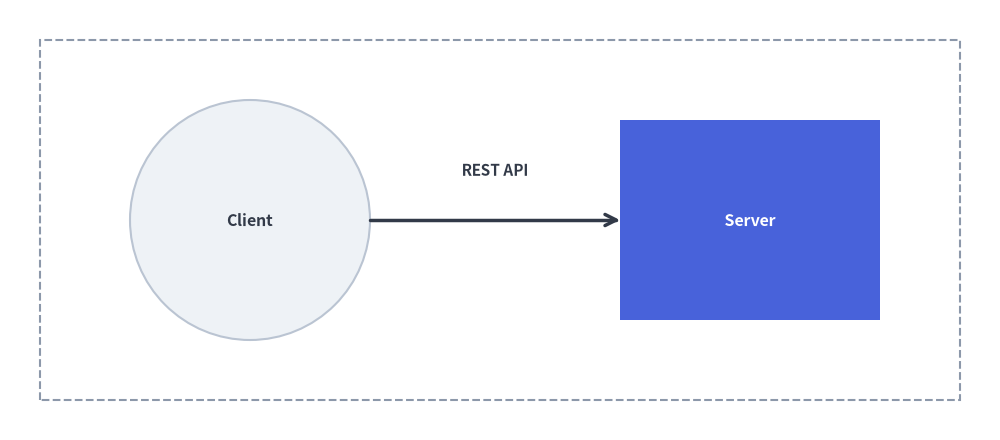
Source Code
from drawlib.canvas import save, setup
from drawlib.shapes import rectangle, circle
from drawlib.lines import line
from drawlib.text import text
from drawlib.styles import Styles

setup(width=100, height=44)

rectangle((50, 22), width=92, height=36, style=Styles.MutedDashed)
circle((25, 22), radius=12, style=Styles.Neutral, text="Client", text_style=Styles.DarkBold.patch(text_size=11.5))
rectangle((75, 22), width=26, height=20, style=Styles.PrimaryFlat, text="Server", text_style=Styles.WhiteBold.patch(text_size=11.5))
line((37, 22), (62, 22), arrow_head="->", style=Styles.DarkBold)
text((49.5, 27), "REST API", style=Styles.DarkBold.patch(text_size=11.0))
save()
3. Key Rules for Smooth Drawing
setup()is Mandatory: Always callsetup(width=..., height=...)at the start of your drawing block.- Handling
save()in Markdown Blocks: In Markdown embedded blocks, callingsave()is optional because Drawlib captures the canvas automatically (and calls tosave()are safely treated as no-ops). However, writingsave()(without arguments) in complete examples is recommended for 100% copy-paste compatibility with standalone.pyscripts. - Color Discipline (50%+ Neutral-Grounded Architecture): Avoid rainbow chaos. Ground 50% or more of nodes in calm neutral cards (
Styles.Neutral,Styles.PrimaryNeutral,Styles.SecondaryNeutral), reserve saturated hero styles (Styles.PrimaryFlat) for 1–2 primary focal points, and useStyles.DarkBoldfor connectors.