Google Cloud (GCP) アイコン
Drawlib は、Drawlib ネイティブで制作された 250 種類以上の高解像度(512×512)な Google Cloud Platform (GCP) アーキテクチャアイコンを drawlib.icons.gcp から提供します。すべてのサービスは、フルスタックの構成図全体で視覚的な統一感を保てるよう統一 3 トーンブルー(variant="default") のテクニカルパレットをデフォルトとしており、さらに主要 19 製品および 26 個のカテゴリアイコンでは Google 4 カラー(variant="modern") パレットも選択できます。
1. カテゴリ別 GCP アイコンショーケース
すべての GCP サービスは gcp.<service_name>(xy, width, *, style, variant="default") として呼び出せます。
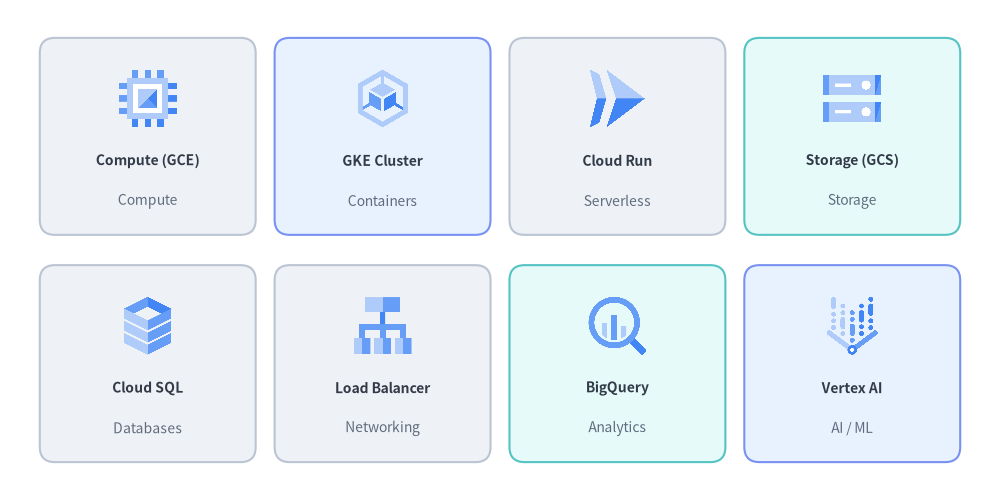
Source Code
from drawlib.canvas import save, setup
from drawlib.icons import gcp
from drawlib.shapes import rectangle
from drawlib.styles import Styles
from drawlib.text import text

setup(width=132, height=66)

row1 = [
    ("Compute (GCE)", "Compute", gcp.compute_engine, Styles.Neutral),
    ("GKE Cluster", "Containers", gcp.google_kubernetes_engine, Styles.PrimaryNeutral),
    ("Cloud Run", "Serverless", gcp.cloud_run, Styles.Neutral),
    ("Storage (GCS)", "Storage", gcp.cloud_storage, Styles.SecondaryNeutral),
]

row2 = [
    ("Cloud SQL", "Databases", gcp.cloud_sql, Styles.Neutral),
    ("Load Balancer", "Networking", gcp.cloud_load_balancing, Styles.Neutral),
    ("BigQuery", "Analytics", gcp.bigquery, Styles.SecondaryNeutral),
    ("Vertex AI", "AI / ML", gcp.vertex_ai, Styles.PrimaryNeutral),
]

for row_idx, items in enumerate([row1, row2]):
    cy = 48 if row_idx == 0 else 18
    for col_idx, (title, cat, icon_fn, card_st) in enumerate(items):
        cx = 19.5 + col_idx * 31
        rectangle((cx, cy), width=28.5, height=26, style=card_st.patch(shape_r=2))
        icon_fn((cx, cy + 5.0), width=8.5, style=Styles.Primary)
        text((cx, cy - 3.2), title, style=Styles.DarkBold.patch(text_size=10.0))
        text((cx, cy - 8.5), cat, style=Styles.Muted.patch(text_size=10.0))

save()
1.1. 主な GCP アイコンカテゴリ
| カテゴリ | 代表的な drawlib.icons.gcp 関数 |
|---|---|
| コンピューティング | compute_engine, app_engine, batch, bare_metal_solutions, vmware_engine |
| コンテナ・サーバーレス | google_kubernetes_engine, cloud_run, cloud_functions, anthos |
| ストレージ | cloud_storage, filestore, persistent_disk, hyperdisk |
| データベース | cloud_sql, cloud_spanner, alloydb, bigtable, firestore, memorystore |
| ネットワーキング | virtual_private_cloud, cloud_load_balancing, cloud_cdn, cloud_dns, cloud_nat, cloud_interconnect |
| データ・分析 | bigquery, pubsub, dataflow, dataproc, cloud_composer, looker |
| AI・機械学習 | vertex_ai, ai_hypercomputer, automl, document_ai, cloud_vision_api, speech_to_text |
| セキュリティ・運用 | cloud_armor, identity_and_access_management, secret_manager, key_management_service, security_command_center, cloud_monitoring, cloud_logging, cloud_build, artifact_registry |
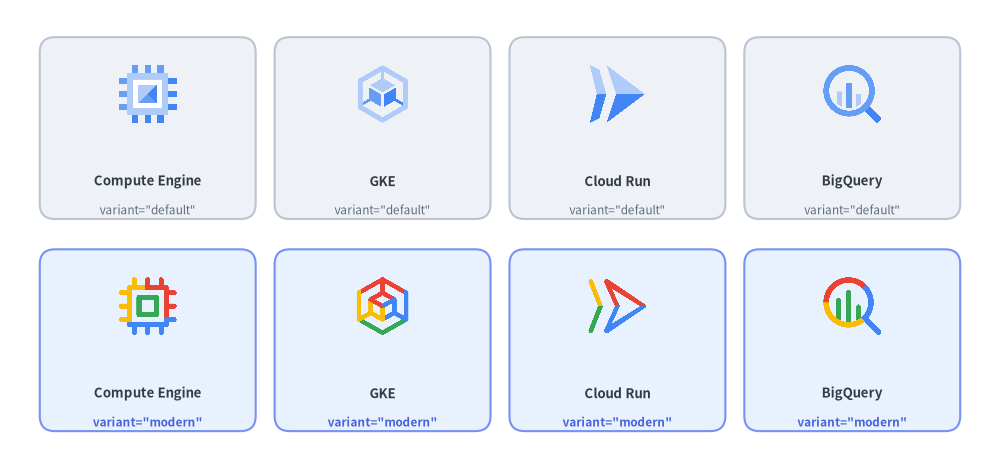
1.2. カラーバリアント: variant="default"(3 トーンブルー)と variant="modern"(4 カラー)
全 250 種類の GCP アイコンは variant="default"(統一 3 トーンブルー #4285F4 / #669DF6 / #AECBFA)を備えており、コアサービスをネットワーキング・セキュリティ・専門サービスと組み合わせて図全体の色調を統一したい場合に推奨されます。また、主要 19 製品および 26 個のカテゴリアイコンでは、variant="modern" を指定して Google 4 カラーのマルチカラーアートワークを描画することもできます。
from drawlib.canvas import save, setup
from drawlib.icons import gcp
from drawlib.shapes import rectangle
from drawlib.styles import Styles
from drawlib.text import text

setup(width=132, height=62)

services = [
    ("Compute Engine", gcp.compute_engine),
    ("GKE", gcp.google_kubernetes_engine),
    ("Cloud Run", gcp.cloud_run),
    ("BigQuery", gcp.bigquery),
]

for col_idx, (label, icon_fn) in enumerate(services):
    cx = 19.5 + col_idx * 31
    # Top row: default (3-tone blue)
    rectangle((cx, 45), width=28.5, height=24, style=Styles.Neutral.patch(shape_r=2))
    icon_fn((cx, 49.5), width=8.5, style=Styles.Primary, variant="default")
    text((cx, 38.0), f"{label}", style=Styles.DarkBold.patch(text_size=9.5))
    text((cx, 34.2), 'variant="default"', style=Styles.Muted.patch(text_size=8.5))

    # Bottom row: modern (4-color)
    rectangle((cx, 17), width=28.5, height=24, style=Styles.PrimaryNeutral.patch(shape_r=2))
    icon_fn((cx, 21.5), width=8.5, style=Styles.Primary, variant="modern")
    text((cx, 10.0), f"{label}", style=Styles.DarkBold.patch(text_size=9.5))
    text((cx, 6.2), 'variant="modern"', style=Styles.PrimaryBold.patch(text_size=8.5))

save()
1.3. 名前による動的アイコン参照(gcp_icon)
設定ファイルや辞書からの読み込みなど、実行時にアイコン名が動的に決まる場合は、低レベルヘルパー関数 gcp_icon() を呼び出すか、drawlib.icons.gcp モジュールから関数を動的に解決できます。
from drawlib.icons import gcp, gcp_icon
from drawlib.styles import Styles

# Render a GCP service icon by string identifier (and optional variant)
gcp_icon((50, 25), width=10.0, name="bigquery", style=Styles.Primary, variant="modern")

# Or look up the generated service function dynamically on the gcp module
getattr(gcp, "compute_engine")((80, 25), width=10.0, style=Styles.Primary, variant="default")
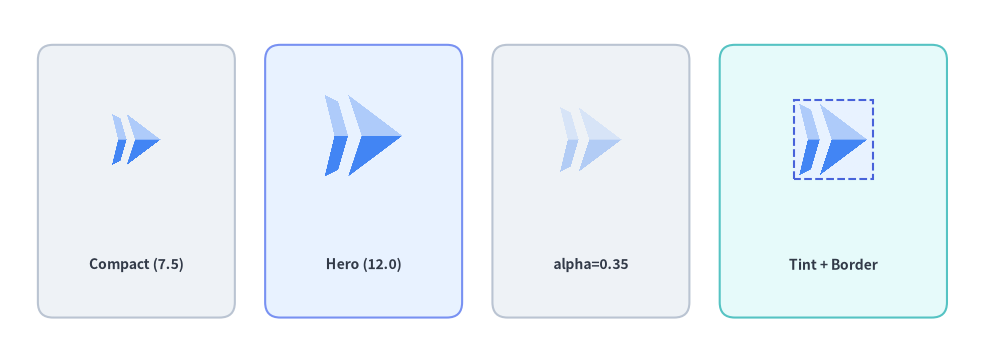
2. サイズ調整・不透明度・背景ティント・境界フレーム(style.image_*)
gcp.<service_name>(xy, width, *, style) は正規化された 512×512 の RGBA PNG アセットをキャンバスの image() エンジン経由で描画するため、Style のすべての image_* スタイリング属性および座標変換属性をサポートします。
Style 属性 |
型 | デフォルト | GCP アイコンに対する視覚効果 |
|---|---|---|---|
alpha |
float |
1.0 |
アイコンの不透明度を調整します(スタンバイや廃止予定レプリカには 0.35 が最適です)。 |
image_tint_color |
Color | tuple | str |
None |
アイコンアートワーク背面の透過背景ピクセルを単色で塗りつぶします(Dimage.fill())。 |
image_border_color |
Color | tuple | str |
(0, 0, 0) |
アイコンのバウンディングボックスを囲む矩形フレームの線色。 |
image_border_width |
float |
0 |
ポイント単位の枠線の太さ(> 0 でアイコン周囲にフレームを描画します)。 |
image_border_style |
"solid" | "dashed" | "dotted" | "dashdot" |
"solid" |
アイコン境界フレームの線種パターン。 |
angle, halign, valign |
float, str, str |
0.0, "center", "center" |
キャンバス上でアイコンを回転させるか、アンカー基準位置を変更します。 |
| 図解上の役割 | 推奨 width |
代表的なスタイリング |
|---|---|---|
| 主要ゲートウェイ / ヒーローサービス | 11.0 – 14.0 単位 |
Styles.PrimaryNeutral カード内に style=Styles.Primary |
| 標準サービスノード | 8.5 – 10.5 単位 |
Styles.Neutral カード内に style=Styles.Primary |
| 埋め込み Pod / サブノード | 7.0 – 8.0 単位 |
コンパクトなサブネットカード内に style=Styles.Primary |
| 廃止予定 / スタンバイノード | 8.5 – 10.0 単位 |
style=Styles.Primary.patch(alpha=0.35) |
from drawlib.canvas import save, setup
from drawlib.icons import gcp
from drawlib.shapes import rectangle
from drawlib.styles import Colors, Styles
from drawlib.text import text

setup(width=132, height=48)

# 1. Compact Size (width=7.5)
rectangle((18, 24), width=26, height=36, style=Styles.Neutral.patch(shape_r=2))
gcp.cloud_run((18, 29.5), width=7.5, style=Styles.Primary)
text((18, 13), "Compact (7.5)", style=Styles.DarkBold.patch(text_size=10.0))

# 2. Hero Size (width=12.0)
rectangle((48, 24), width=26, height=36, style=Styles.PrimaryNeutral.patch(shape_r=2))
gcp.cloud_run((48, 30.0), width=12.0, style=Styles.Primary)
text((48, 13), "Hero (12.0)", style=Styles.DarkBold.patch(text_size=10.0))

# 3. Standby Opacity (alpha=0.35)
rectangle((78, 24), width=26, height=36, style=Styles.Neutral.patch(shape_r=2))
gcp.cloud_run((78, 29.5), width=9.5, style=Styles.Primary.patch(alpha=0.35))
text((78, 13), "alpha=0.35", style=Styles.DarkBold.patch(text_size=10.0))

# 4. Background Tint + Dashed Border (image_tint_color & image_border_*)
rectangle((110, 24), width=30, height=36, style=Styles.SecondaryNeutral.patch(shape_r=2))
framed_style = Styles.Primary.patch(
    image_tint_color=Colors.Primary1,
    image_border_color=Colors.Primary,
    image_border_width=1.5,
    image_border_style="dashed",
)
gcp.cloud_run((110, 29.5), width=10.5, style=framed_style)
text((110, 13), "Tint + Border", style=Styles.DarkBold.patch(text_size=10.0))

save()
3. ダイアグラムでの GCP アイコンの活用
レイアウト要件に応じて、次の 3 つの抽象度レベルで技術図解に GCP アイコンを組み込めます。
| アプローチ | 適した用途 | アイコンの配置方法 |
|---|---|---|
1. 単体の gcp.<service>() |
カスタムキャンバスレイアウト、独自デザインのカード、注釈 | rectangle() カードの上に直接 gcp.<service>((x, y), width=...) を描画します。 |
2. GridLayout との組み合わせ |
階層型アーキテクチャマトリクス、サービスカタログ | GridLayout でマトリクスの背景セルを描画し、各セルの中心に gcp.<service>() を重ねます。 |
3. ArchitectureDiagram 内での利用 |
接続された VPC トポロジ、サブネット、ファンアウトルーティング | Node(...) に icon=GcpIcon.<SERVICE> を渡し、自動カードレイアウトと直交ワイヤールーティングを利用します。 |
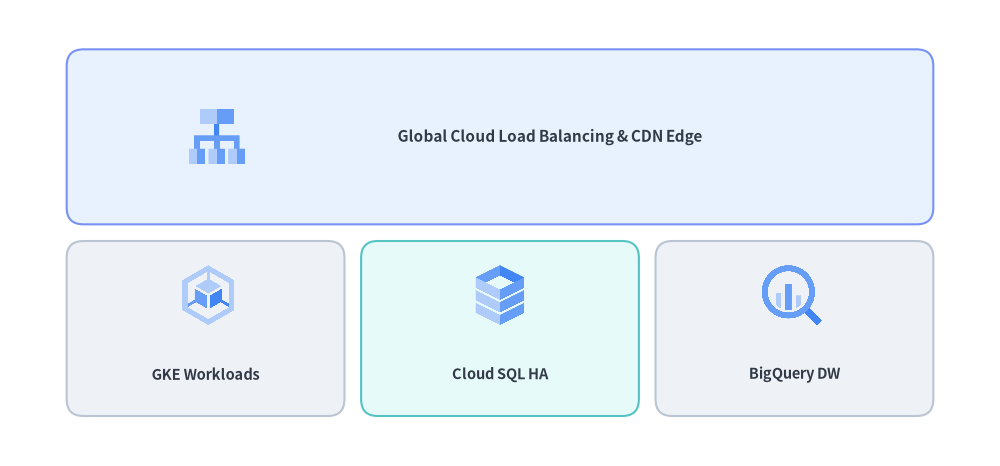
3.1. GridLayout マトリクス階層上への GCP アイコンの重ね合わせ
from drawlib.canvas import save, setup
from drawlib.icons import gcp
from drawlib.smartarts import GridLayout
from drawlib.styles import Styles

setup(width=120, height=56)

# 1. Draw a 3-column x 2-row GridLayout matrix
grid = GridLayout(
    num_column=3,
    num_row=2,
    style=Styles.Neutral.patch(shape_r=2),
    text_style=Styles.DarkBold.patch(text_size=10.5),
)
# Top header row spanning all 3 columns
grid.add(
    position=(0, 1),
    width=3,
    height=1,
    text="Global Cloud Load Balancing & CDN Edge",
    style=Styles.PrimaryNeutral.patch(shape_r=2),
    text_style=Styles.DarkBold.patch(text_size=11.0, xy_shift=(6, 0)),
)
# Bottom 3 service cells (shift labels down to make room for icons)
lbl_style = Styles.DarkBold.patch(text_size=10.5, xy_shift=(0, -5.5))
grid.add(position=(0, 0), width=1, height=1, text="GKE Workloads", text_style=lbl_style)
grid.add(
    position=(1, 0),
    width=1,
    height=1,
    text="Cloud SQL HA",
    style=Styles.SecondaryNeutral.patch(shape_r=2),
    text_style=lbl_style,
)
grid.add(position=(2, 0), width=1, height=1, text="BigQuery DW", text_style=lbl_style)

grid.draw(xy=(8, 6), width=104, height=44, margin=2.0)

# 2. Overlay GCP icons onto the grid cells
gcp.cloud_load_balancing((26, 39.5), width=7.5, style=Styles.Primary)
gcp.google_kubernetes_engine((25, 20.5), width=8.0, style=Styles.Primary)
gcp.cloud_sql((60, 20.5), width=8.0, style=Styles.Primary)
gcp.bigquery((95, 20.5), width=8.0, style=Styles.Primary)

save()
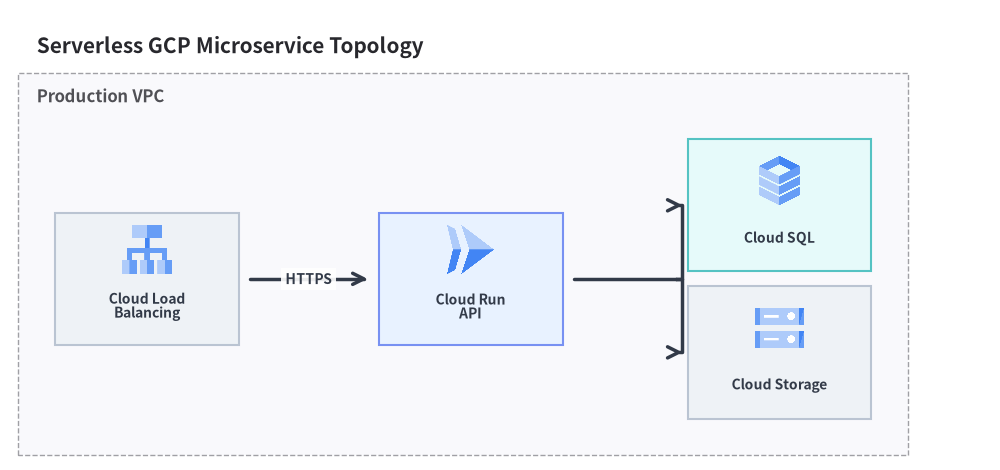
3.2. 高レベルな ArchitectureDiagram(Node と GcpIcon)
自動ルーティングされた矢印や VPC/サブネット境界ボックスでサービス同士を接続する場合は、ArchitectureDiagram と Node(..., icon=GcpIcon.<SERVICE>) を組み合わせて使用します。
from drawlib.canvas import clear, save, setup
from drawlib.diagrams.architecture import ArchitectureDiagram, GcpIcon, Node, NodeGroup
from drawlib.styles import Styles

clear()
setup(width=136, height=64)

d = ArchitectureDiagram(
    node_style=Styles.Primary,
    node_text_style=Styles.DarkBold.patch(text_size=10.0),
    edge_style=Styles.DarkBold,
    edge_text_style=Styles.DarkBold.patch(text_size=10.0),
    node_card_style=Styles.Neutral,
    title="Serverless GCP Microservice Topology",
)

vpc = d.add(NodeGroup(title="Production VPC", padding=5.0), xy=(4.0, 4.0))
lb = vpc.add(
    Node("Cloud Load\nBalancing", width=25, height=18, icon=GcpIcon.CLOUD_LOAD_BALANCING, icon_size=7.5),
    xy=(12.0, 18.0),
)
run = vpc.add(
    Node(
        "Cloud Run\nAPI",
        width=25,
        height=18,
        icon=GcpIcon.CLOUD_RUN,
        icon_size=7.5,
        card_style=Styles.PrimaryNeutral,
    ),
    xy=(56.0, 18.0),
)
sql = vpc.add(
    Node(
        "Cloud SQL",
        width=25,
        height=18,
        icon=GcpIcon.CLOUD_SQL,
        icon_size=7.5,
        card_style=Styles.SecondaryNeutral,
    ),
    xy=(98.0, 28.0),
)
gcs = vpc.add(
    Node("Cloud Storage", width=25, height=18, icon=GcpIcon.CLOUD_STORAGE, icon_size=7.5),
    xy=(98.0, 8.0),
)

d.connect(lb, run, label="HTTPS", padding=1.5)
run.fork([sql, gcs], at_x=88.0, padding=1.5)

d.draw(xy=(4.0, 4.0))
save()
[!TIP] Amazon Web Services (AWS) アイコン (
drawlib.icons.aws)、Microsoft Azure アイコン (drawlib.icons.azure)、および**クラウド・オリジナルクラウドアイコン (drawlib.icons.cloud/original_cloud)については、アイコン概要**を参照してください。