スライドステージレイアウトと API
16:9 ワイドスクリーンのプレゼンテーションデッキ(drawlib init slide)を執筆する際、Drawlib は高精度な 1920 × 1080 ピクセルの仮想ステージ(::: block、::: note)、組み込みレイアウトパターン、インラインベクター SVG へのフォントバンドル、およびプログラマティックな drawlib.slide Python ランタイム API(current_slide、SlideContext、BoundingBox、build_slide、build_pptx)を提供します。(スライドデッキプロジェクトの初期化やビルド手順については、スライドデッキプロジェクトガイド を参照してください。)
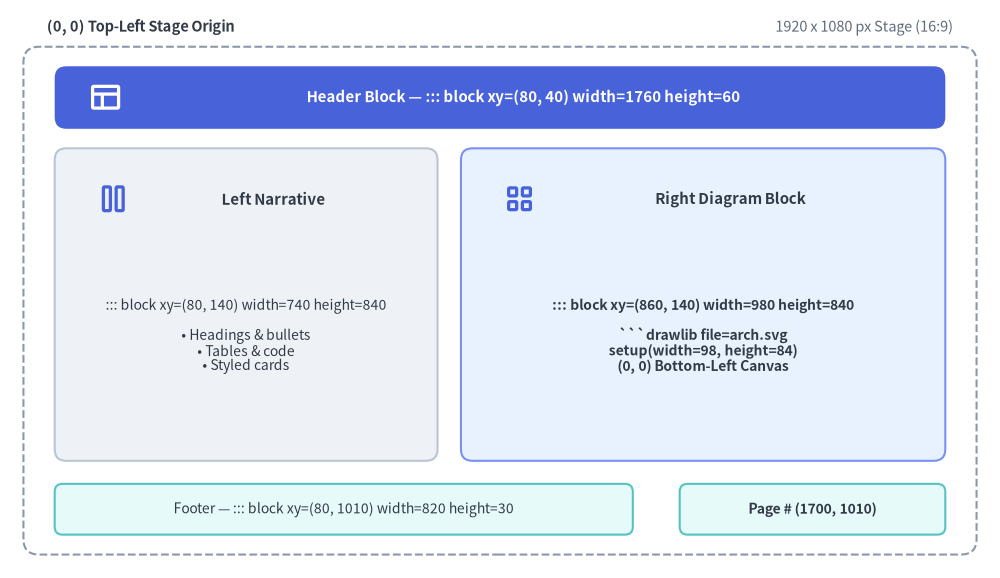
Source Code
from drawlib.canvas import save, setup
from drawlib.icons import phosphor
from drawlib.shapes import rectangle
from drawlib.styles import Styles
from drawlib.text import text

setup(width=128, height=74)

# Outer 1920x1080 Stage Frame
rectangle((64, 35.5), width=122, height=65, style=Styles.MutedDashed.patch(shape_r=2.0))
text((6, 70.5), "(0, 0) Top-Left Stage Origin", style=Styles.DarkBold.patch(text_size=10.5, halign="left"))
text((122, 70.5), "1920 x 1080 px Stage (16:9)", style=Styles.Muted.patch(text_size=10.5, halign="right"))

# Header Zone: ::: block xy=(80, 40) width=1760 height=60
rectangle((64, 61.5), width=114, height=8.0, style=Styles.PrimaryFlat.patch(shape_r=1.5))
phosphor.layout((13.5, 61.5), width=4.4, style=Styles.WhiteBold)
text((67.0, 61.5), "Header Block — ::: block xy=(80, 40) width=1760 height=60", style=Styles.WhiteBold.patch(text_size=10.8))

# Left Narrative Column: ::: block xy=(80, 140) width=740 height=840
rectangle((31.5, 35.0), width=49, height=40, style=Styles.Neutral.patch(shape_r=1.5))
phosphor.columns((14.5, 48.5), width=4.4, style=Styles.PrimaryBold)
text((35.0, 48.5), "Left Narrative", style=Styles.DarkBold.patch(text_size=10.8))
text(
    (31.5, 31.0),
    "::: block xy=(80, 140) width=740 height=840\n\n• Headings & bullets\n• Tables & code\n• Styled cards",
    style=Styles.Dark.patch(text_size=10.0),
)

# Right Diagram Column: ::: block xy=(860, 140) width=980 height=840
rectangle((90.0, 35.0), width=62, height=40, style=Styles.PrimaryNeutral.patch(shape_r=1.5))
phosphor.squares_four((66.5, 48.5), width=4.4, style=Styles.PrimaryBold)
text((93.5, 48.5), "Right Diagram Block", style=Styles.DarkBold.patch(text_size=10.8))
text(
    (90.0, 31.0),
    "::: block xy=(860, 140) width=980 height=840\n\n```drawlib file=arch.svg\nsetup(width=98, height=84)\n(0, 0) Bottom-Left Canvas",
    style=Styles.DarkBold.patch(text_size=10.0),
)

# Footer & Page Counter Blocks
rectangle(
    (44, 8.8),
    width=74,
    height=6.5,
    style=Styles.SecondaryNeutral.patch(shape_r=1.0),
    text="Footer — ::: block xy=(80, 1010) width=820 height=30",
    text_style=Styles.Dark.patch(text_size=10.0),
)
rectangle(
    (104, 8.8),
    width=34,
    height=6.5,
    style=Styles.SecondaryNeutral.patch(shape_r=1.0),
    text="Page # (1700, 1010)",
    text_style=Styles.DarkBold.patch(text_size=10.0),
)

save()
1. インタラクティブなステージジオメトリ&API ツアー
各スライドは、左上原点の 1920 × 1080 HTML ステージ(::: block xy=(x, y) width=W height=H および z_index レイヤー)と、左下原点のデカルト座標 drawlib キャンバス、非表示の ::: note 発表者台本(?presenter=1 およびネイティブ PowerPoint .pptx スピーカーノートに出力)、さらに drawlib.slide Python ランタイム(current_slide、BoundingBox、build_slide、build_pptx)を組み合わせて構成されます。

2. 2 つの座標系: 1920×1080 ステージと Drawlib キャンバス
すべてのスライドでは、以下の 2 つの座標系が連携して機能します。
- スライドステージ (
::: block xy=(x, y) width=W height=H) — 左上原点(0, 0):- すべてのスライドは固定サイズの 1920 × 1080 ピクセル ワイドスクリーンステージ(16:9 アスペクト比)上にレンダリングされ、ブラウザのビューポートや PDF ページに合わせて自動的にスケーリングされます。
- コンテナブロック(
::: block)は、(0, 0)を左上隅 とする CSS ステージピクセル単位で配置します。xは右方向へ増加します(0→1920)。yは下方向へ増加します(0→1080)。
- 標準セーフコンテンツ領域: 主要なテキストや図解は
x: 80..1840(width=1760)かつy: 140..980(height=840)の内側に収め、y: 40..100をスライドヘッダー用、y: 1010..1040をフッターおよびページ番号用に確保します。
- Drawlib キャンバス (
drawlibPython ブロック) — 左下原点(0, 0):drawlibコードブロックの内部では、setup(width=W, height=H)が(0, 0)を左下隅 とする数学的なデカルト座標キャンバスを定義します。xは右方向へ増加します(0→W)。yは上方向へ増加します(0→H)。
2.1. 鉄則: setup(width, height) のアスペクト比をブロックの width・height に一致させる
setup(width=W, height=H) には、必ず外側の ::: block xy=(x, y) width=W height=H のピクセル寸法に比例した値(通常はピクセルの幅・高さを 10 または 20 で割った値)を設定してください。
外側の ::: block の寸法 |
推奨される setup(width, height) |
アスペクト比 |
|---|---|---|
width=980 height=840 (右側の図解カラム) |
setup(width=98, height=84) |
98 : 84 |
width=1020 height=840 (ワイドな右側カラム) |
setup(width=102, height=84) |
102 : 84 |
width=1760 height=840 (全幅コンテンツ領域) |
setup(width=176, height=84) |
176 : 84 |
width=980 height=1080 (右半分フルブリード) |
setup(width=98, height=108) |
98 : 108 |
width=1920 height=1080 (全面キャンバス・ヒーロースライド) |
setup(width=192, height=108) |
16 : 9 |
3. ステージコンテナブロック構文 (::: block & ::: note)
スライドの Markdown ファイルは YAML フロントマター(---)を持たない純粋な Markdown で記述します。スライド上のすべての視覚要素は、Python のキーワード引数形式(key=value)を用いた 1 つ以上の ::: block コンテナ内に配置します。
::: block xy=(x, y) width=W height=H [options...]
<Markdown content or ```drawlib code fence>
:::
スライドファイル内に ::: block タグが 1 つも含まれていない場合、Drawlib はスライドコンテンツ全体をデフォルトのコンテンツ領域 ::: block xy=(80, 140) width=1760 height=840 で自動的にラップします。同様に、::: block ヘッダーで xy、width、または height が省略された場合も、それぞれ xy=(80, 140)、width=1760、height=840 がデフォルト適用されます。
3.1. ::: block オプション完全リファレンス
| オプションキー | 指定例 | コンパイル後の CSS / 動作 |
|---|---|---|
配置座標 (xy) |
xy=(80, 140), xy=(0, 0) |
position: absolute; left: 80px; top: 140px; |
サイズ (width, height) |
width=740 height=840, width=1920 height=1080 |
width: 740px; height: 840px; |
フォントサイズ (font_size) |
font_size=22px, font_size=1.2rem, font_size=18 |
font-size: 22px;(単位なしの数値には自動的に px が付与されます)。 |
コンパクト密度 (compact) |
compact=true |
<div class="slide-block slide-text-box compact"> に .compact クラスを追加し、行間とリスト間隔を引き締めます。 |
テキスト揃え (align) |
align=left, align=center, align=right |
text-align: center; |
重なり順 (z_index) |
z_index=5, z_index=10 |
z-index: 5; — ブロック同士が重なる際の前面/背面の重なり順を制御します。 |
カスタム CSS クラス (class) |
class="card panel accent border shadow", class=card |
コンテナの <div> にカスタムユーティリティ/テーマクラス(card、panel、accent、transparent、border、shadow、middle など)を追加します。 |
インライン CSS スタイル (style) |
style="padding: 24px; background: #f8fafc; border-radius: 12px" |
コンテナの <div> にカスタムのインライン CSS ルール(padding、background、border など)を追加します。 |
3.2. スピーカーノート (::: note)
スライド Markdown ファイル内の任意の位置に ::: note を記述して発表者用メモを追加できます。スピーカーノートは表示用のスライドステージからは取り除かれ、2 ウィンドウ同期式の 発表者ツール(Presenter View)(P または S キー)向けに <aside class="slide-notes" hidden> へコンパイルされるとともに、drawlib build pptx / build_pptx() 実行時には PowerPoint ネイティブのスピーカーノート としてエクスポートされます。
::: note
- Emphasize that **SQLite hash caching** restores unchanged diagrams in **< 1ms**.
- Press `A` or click **Play Animation** to step through the pipeline animation.
:::
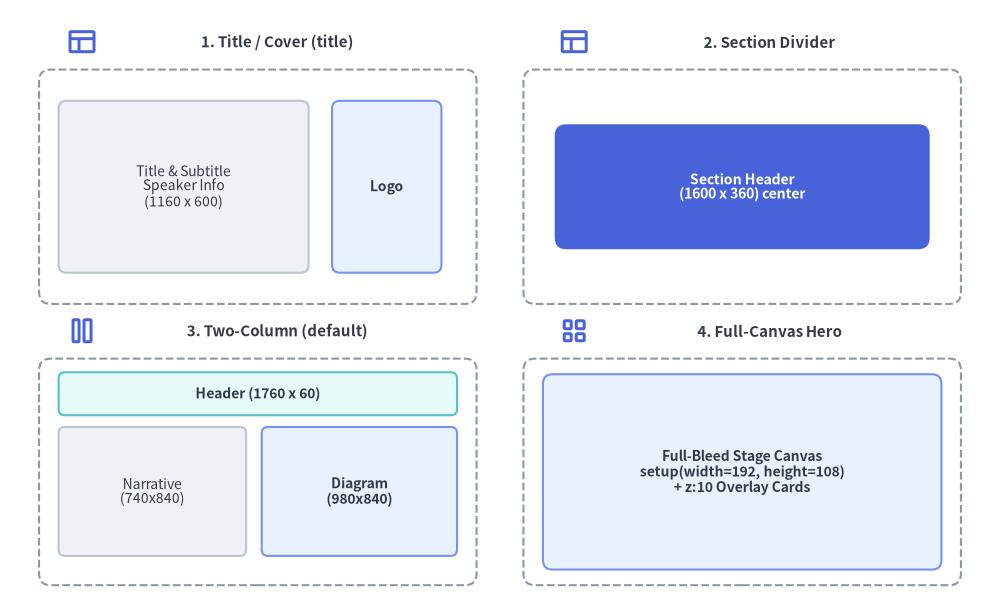
4. 組み込みスライドレイアウトパターンとテンプレート
Source Code
from drawlib.canvas import save, setup
from drawlib.icons import phosphor
from drawlib.shapes import rectangle
from drawlib.styles import Styles
from drawlib.text import text

setup(width=128, height=76)

# 1. Top-Left: Title / Cover Slide (title)
phosphor.layout((10.5, 70.5), width=4.0, style=Styles.PrimaryBold)
text((35.5, 70.5), "1. Title / Cover (title)", style=Styles.DarkBold.patch(text_size=10.8))
rectangle((33, 52), width=56, height=30, style=Styles.MutedDashed.patch(shape_r=1.5))
rectangle(
    (23.5, 52),
    width=32,
    height=22,
    style=Styles.Neutral.patch(shape_r=1.0),
    text="Title & Subtitle\nSpeaker Info\n(1160 x 600)",
    text_style=Styles.Dark.patch(text_size=10.0),
)
rectangle(
    (49.5, 52),
    width=14,
    height=22,
    style=Styles.PrimaryNeutral.patch(shape_r=1.0),
    text="Logo",
    text_style=Styles.DarkBold.patch(text_size=10.0),
)

# 2. Top-Right: Section Divider / Closing (section)
phosphor.layout((73.5, 70.5), width=4.0, style=Styles.PrimaryBold)
text((98.5, 70.5), "2. Section Divider", style=Styles.DarkBold.patch(text_size=10.8))
rectangle((95, 52), width=56, height=30, style=Styles.MutedDashed.patch(shape_r=1.5))
rectangle(
    (95, 52),
    width=48,
    height=16,
    style=Styles.PrimaryFlat.patch(shape_r=1.5),
    text="Section Header\n(1600 x 360) center",
    text_style=Styles.WhiteBold.patch(text_size=10.2),
)

# 3. Bottom-Left: Two-Column Split (default)
phosphor.columns((10.5, 33.5), width=4.0, style=Styles.PrimaryBold)
text((35.5, 33.5), "3. Two-Column (default)", style=Styles.DarkBold.patch(text_size=10.8))
rectangle((33, 15.5), width=56, height=29, style=Styles.MutedDashed.patch(shape_r=1.5))
rectangle(
    (33, 25.5),
    width=51,
    height=5.5,
    style=Styles.SecondaryNeutral.patch(shape_r=0.8),
    text="Header (1760 x 60)",
    text_style=Styles.DarkBold.patch(text_size=10.0),
)
rectangle(
    (19.5, 13.0),
    width=24,
    height=16.5,
    style=Styles.Neutral.patch(shape_r=0.8),
    text="Narrative\n(740x840)",
    text_style=Styles.Dark.patch(text_size=10.0),
)
rectangle(
    (46.0, 13.0),
    width=25,
    height=16.5,
    style=Styles.PrimaryNeutral.patch(shape_r=0.8),
    text="Diagram\n(980x840)",
    text_style=Styles.DarkBold.patch(text_size=10.0),
)

# 4. Bottom-Right: Full-Canvas Hero ((0,0)-(1920,1080))
phosphor.squares_four((73.5, 33.5), width=4.0, style=Styles.PrimaryBold)
text((98.5, 33.5), "4. Full-Canvas Hero", style=Styles.DarkBold.patch(text_size=10.8))
rectangle((95, 15.5), width=56, height=29, style=Styles.MutedDashed.patch(shape_r=1.5))
rectangle(
    (95, 15.5),
    width=51,
    height=25,
    style=Styles.PrimaryNeutral.patch(shape_r=1.2),
    text="Full-Bleed Stage Canvas\nsetup(width=192, height=108)\n+ z:10 Overlay Cards",
    text_style=Styles.DarkBold.patch(text_size=10.0),
)

save()
4.1. タイトル/表紙スライド (title)
左側にメインタイトル・サブタイトル・登壇者メタデータを配置し、右側にヒーローイラストやロゴを配置します。
::: block xy=(160, 240) width=1160 height=600
# Presentation Title
## Subtitle or Core Value Proposition
Brief one-line summary of the presentation topic
---
**Speaker Name** | Role / Organization
*October 2026*
:::
::: block xy=(1360, 260) width=400 height=480

:::
4.2. セクションヘッダー/章扉スライド (draw_section_header)
フルブリードの ::: block xy=(0, 0) width=1920 height=1080 ブロック(01_section.md など)内で from drawlib.slide import draw_section_header を呼び出し、4 種類のレイアウトパターン(variant="split"、"centered"、"banner"、"minimal")から選択して描画します。
::: block xy=(0, 0) width=1920 height=1080
```drawlib file=section_cover.svg
from drawlib.slide import draw_section_header

draw_section_header(
    2,
    "Distributed Storage Engine",
    "Consensus, Replication & Recovery Workflows",
    [
        "Raft Consensus & Leader Election",
        "Quorum Write Path & WAL Durability",
        "Automated Shard Rebalancing",
    ],
    total_sections=4,
    variant="split",
)
```
:::
4.3. 標準コンテンツ&2 カラム分割 (default)
標準のヘッダー((80, 40) (1760, 60))、フッター((80, 1010) (820, 30))、ページカウンター((1700, 1010) (140, 30))、左側のテキスト解説カラム((80, 140) (740, 840))、および右側の図解カラム((860, 140) (980, 840))を組み合わせます。
::: block xy=(1700, 1010) width=140 height=30
```drawlib file=page.svg
from drawlib.slide import draw_page_number

draw_page_number()
```
:::

::: block xy=(80, 40) width=1760 height=60
# Cloud Microservices Topology
:::

::: block xy=(80, 140) width=740 height=840
## Key Architectural Decisions

- **API Gateway**: Centralized TLS termination and rate limiting
- **Service Mesh**: mTLS zero-trust east-west communication
- **Event Streaming**: Asynchronous decoupling via Pub/Sub
:::

::: block xy=(860, 140) width=980 height=840
```drawlib file=arch_topology.svg
from drawlib.canvas import clear, save, setup
from drawlib.shapes import rectangle
from drawlib.styles import Styles

clear()
setup(width=98, height=84)
rectangle((49, 42), width=80, height=60, style=Styles.Neutral, text="Architecture Diagram")
save()
```
:::

::: block xy=(80, 1010) width=820 height=30 font_size=14px
*Deck Footer / Presentation Title*
:::
4.4. フルキャンバス・ヒーロースライド (xy=(0, 0) width=1920 height=1080)
16:9 スライド全体を単一の統合ベクターキャンバスとして描画したい場合は、setup(width=192, height=108) を設定した xy=(0, 0) width=1920 height=1080 ブロックと z_index=10 のオーバーレイを組み合わせて使用します。
5. スライドにおけるインラインベクター .svg とアニメーション .png / .webp の使い分け
| 出力フォーマット | フェンス構文 | slide_html/・slide.pdf・slide.pptx でのレンダリング動作 |
|---|---|---|
| インラインベクター SVG (静的図解のデフォルト) | ```drawlib file=diagram.svg |
HTML および PDF では <div class="slide-svg-container"><svg>...</svg></div> として直接インライン展開されます(.ttf/.otf の @font-face ルールがバンドルされるため拡大しても劣化せず、Ctrl+F でのテキスト検索も可能です)。drawlib build pptx では高解像度の鮮明な静的 PNG(デフォルト --dpi 240)としてレンダリングされます。 |
インタラクティブ <canvas> アニメーション (Animation() 使用時のデフォルト) |
```drawlib file=flow.png anim_trigger=click anim_loop=once anim_pause=(2, 4) |
APNG(.png)またはアニメーション WebP(.webp)のペイロードを Base64 エンコードし、http:// サーバー経由でもローカル HTML ファイル直接閲覧でも動作するインタラクティブな <canvas class="drawlib-anim-canvas"> プレイヤー内に埋め込みます。PDF エクスポート(build_pdf.sh)ではフレーム 0 が静的ポスター画像として描画され、PowerPoint エクスポート(drawlib build pptx)では --anim-frame last(デフォルト)または first が --dpi 240 で埋め込まれます。 |
6. プログラマティックな drawlib.slide Python API
すべてのスライドランタイムヘルパー、ステージ/ページ描画ヘルパー、ジオメトリモデル、およびコンパイル関数は drawlib.slide からエクスポートされています。
from drawlib.slide import (
    BoundingBox,
    SlideContext,
    build_pptx,
    build_slide,
    current_slide,
    draw_page_number,
    draw_section_header,
)
| シンボル | カテゴリ | 説明 |
|---|---|---|
current_slide |
ランタイムプロキシ | デッキのコンパイル中、処理対象スライドの 1 始まりの index、総スライド数 total、.text("{index} / {total}")、および .format(template) を公開する contextvars ベースの動的プロキシです。 |
draw_page_number |
ステージヘルパー | current_slide.text またはカスタム template を使用して、標準化されたスライドページ番号バッジ(14×3、alpha=0.0)を描画します。 |
draw_section_header |
ステージヘルパー | 4 種類のレイアウトバリアント("split"、"centered"、"banner"、"minimal")から選択可能な、フルブリード 16:9 セクションヘッダースライド(192×108)を描画します。 |
SlideContext |
不変データクラス | スライド番号の状態を保持するイミュータブルなコンテキストモデル(index: int = 1、total: int = 1、.text、.format())です。 |
BoundingBox |
不変データクラス | 1920×1080 ステージピクセル単位のイミュータブルなステージジオメトリモデル(x: float、y: float、width: float、height: float)です。 |
build_slide |
コンパイラ関数 | slide_src/ の Markdown ディレクトリをスタンドアロンの HTML プレゼンテーションデッキ(index.html)へプログラムからコンパイルします。 |
build_pptx |
コンパイラ関数 | ヘッドレス Chromium による CSS レイアウト計測を介して、slide_src/ の Markdown ディレクトリをネイティブ編集可能な 16:9(960×540 pt)MS PowerPoint(.pptx)デッキへプログラムからコンパイルします。 |
6.1. current_slide・SlideContext・BoundingBox リファレンス
| オブジェクト | 属性 / メソッド | 型 | 説明 |
|---|---|---|---|
current_slide / SlideContext |
.index |
int |
ソート済みデッキ順における現在のスライドの 1 始まりインデックス(スライドビルド外ではデフォルト 1)。 |
current_slide / SlideContext |
.total |
int |
プレゼンテーションデッキ全体の総スライド枚数(スライドビルド外ではデフォルト 1)。 |
current_slide / SlideContext |
.text |
str |
標準フォーマットのスライド番号文字列 f"{index} / {total}"(例: "4 / 9")。 |
current_slide / SlideContext |
.format(template="{index} / {total}") |
str |
{index} と {total} プレースホルダーを使用したカスタムフォーマット文字列(例: current_slide.format("Slide {index} of {total}"))。 |
BoundingBox |
.x, .y, .width, .height |
float |
1920×1080 ステージピクセル単位での左上ステージ座標(x, y)およびサイズ(width, height)。 |
build_slide() および build_pptx() の実行中、Drawlib は各スライドの drawlib ブロックを実行する前に SlideContext(index=idx, total=N) をバインドします(単体実行時は安全に 1 / 1 がデフォルトとなります)。
from drawlib.slide import draw_page_number, draw_section_header

# 1. Bottom-right page counter badge (::: block xy=(1700, 1010) width=140 height=30)
draw_page_number()

# 2. Full-bleed 16:9 section header slide (::: block xy=(0, 0) width=1920 height=1080)
draw_section_header(
    1,
    "Architecture Overview",
    "Core Engine, SmartArts & Auto-Layout Graphs",
    ["Coordinate Geometry", "Semantic Design Tokens", "High-Level Components"],
    total_sections=4,
    variant="split",  # "split" | "centered" | "banner" | "minimal"
)
6.2. プログラムからのスライドコンパイル (build_slide & build_pptx)
from drawlib.slide import build_pptx, build_slide

index_html_path = build_slide(
    input_dir="slide_src",
    output_dir="slide_html",
    title="System Architecture Deck",
    theme="google",
    image_format="svg",
    styles_path="slide_src/styles.py",
    utils_path="slide_src/utils.py",
    no_cache=False,
)

pptx_path = build_pptx(
    input_dir="slide_src",
    output_file="slide.pptx",
    title="System Architecture Deck",
    theme="google",
    dpi=240,
    anim_frame="last",
    styles_path="slide_src/styles.py",
    utils_path="slide_src/utils.py",
    no_cache=False,
)