プロジェクト構成とビルド
Drawlib は単なる描画ライブラリではなく、実行可能な Python による図解とバージョン管理された技術ドキュメントを統合する 包括的なドキュメントコンパイラ です。
コードとしてのドキュメント(Documentation-as-Code)ワークフロー
静的な Wiki に文章を書き、PNG のスクリーンショットを手作業でコピー&ペーストする従来の運用に代わり、Drawlib は AI コーディングエージェントを活用したクリーンで再現性の高い Human-in-the-Loop ワークフローを実現します。
- Day 1 — 初期化・執筆・コミット: AI エージェントに初期プロジェクトの作成(
drawlib init docによるdrawlib.toml、styles.py、utils.py、および任意のtemplate.html/style.cssの設定)を依頼し、続けて仕様書の執筆とビルド(```drawlibブロックを含むdoc_src/<lang>/*.mdからdoc_markdown/、doc_html/、doc_<lang>.pdf、doc_<lang>.docxを生成)を指示したうえで、成果物をレビューして Git にコミットします。 - Day 2 以降 — 日々の差分アップデート: アプリケーションコードが進化したら、AI エージェントにドキュメントの更新(
.md章ファイルの編集と.drawlib/cache.dbキャッシュを活用した./doc_src/build.shの実行)を依頼し、更新された成果物をコードと一緒にコミットするだけで常に同期を維持できます。
鉄則: <name>_src/ が唯一の信頼できる情報源(Single Source of Truth)
- Markdown ファイルや Python コードの編集は、必ずソースディレクトリ(例:
docs_src/)内で行ってください。 - 出力ディレクトリや生成ファイル(
docs_markdown/、docs_html/、*_<lang>.pdf、*_<lang>.docx、*_<lang>.pptx)を直接編集しないでください。これらはビルド時に完全に上書きされる成果物です。
1. プロジェクトのスキャフォールディング(drawlib init)
コマンド 1 つでプロジェクトの完全なテンプレートを生成できます。
# List available starter project templates
$ uv run drawlib init list

# Initialize a multi-page documentation website (creates docs_src/)
$ uv run drawlib init site

# Or scaffold into a custom target name (positional argument, e.g., mybook_src/ -> mybook_html/):
$ uv run drawlib init site mybook

# Optional flags: --style (-s) for theme and --lang (-l) for single or multi-locale (e.g. en,ja)
$ uv run drawlib init doc rbac -s google -l en,ja

Drawlib は 4 種類のスタータープロジェクトタイプをサポートしています(doc・site・slide は標準で <src_dir>/<lang>/ と drawlib.toml の [i18n] を使用します)。
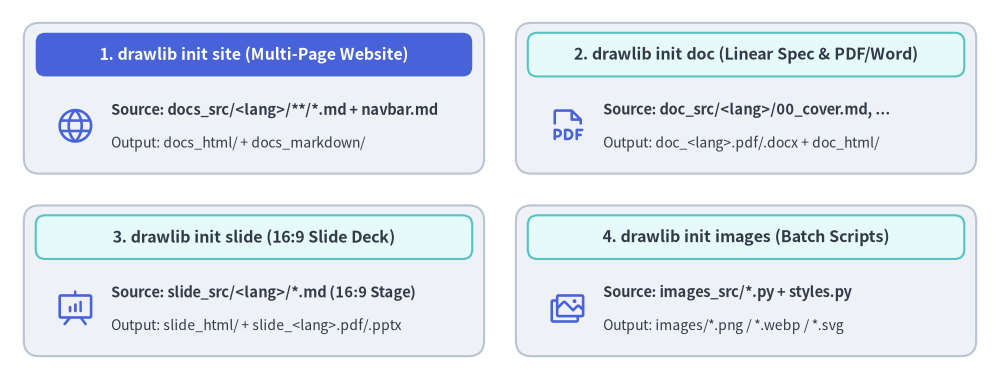
doc: HTML(doc_html/)、PDF(doc_<lang>.pdf)、編集可能な MS Word(doc_<lang>.docx)、Markdown(doc_markdown/)、および図解画像(doc_images/)へコンパイルされる単一構成の技術文書・仕様書・RFC・レポート。site: マルチページのドキュメントサイト(docs_html/)、Markdown サイト(docs_markdown/)、および図解画像(docs_images/)。slide: Web スライドデッキ(slide_html/)、ベクター PDF(slide_<lang>.pdf)、編集可能な MS PowerPoint(slide_<lang>.pptx)、および図解画像(slide_images/)へコンパイルされる 16:9 プレゼンテーションスライド。images: 画像ファイル(images/*.pngなど)へ一括コンパイルされるスタンドアロンの Python 図解スクリプト群(images_src/*.py)。
Source Code
from drawlib.canvas import save, setup
from drawlib.icons import phosphor
from drawlib.shapes import rectangle
from drawlib.styles import Styles
from drawlib.text import text

setup(width=126, height=48)

hdr_white = Styles.WhiteBold.patch(text_size=11.5)
hdr_dark = Styles.DarkBold.patch(text_size=11.5)
body_bold = Styles.DarkBold.patch(text_size=10.5, halign="left")
body_sub = Styles.Dark.patch(text_size=10.0, halign="left")

# 1. Top-Left: drawlib init site (Hero header)
rectangle((32.0, 35.5), width=58.0, height=19.0, style=Styles.Neutral.patch(shape_r=2.0))
rectangle((32.0, 41.0), width=55.0, height=5.5, style=Styles.PrimaryFlat.patch(shape_r=1.2), text="1. drawlib init site (Multi-Page Website)", text_style=hdr_white)
phosphor.globe((9.5, 32.0), width=5.2, style=Styles.Primary)
text((14.0, 34.0), "Source: docs_src/<lang>/**/*.md + navbar.md", style=body_bold)
text((14.0, 29.8), "Output: docs_html/ + docs_markdown/", style=body_sub)

# 2. Top-Right: drawlib init doc
rectangle((94.0, 35.5), width=58.0, height=19.0, style=Styles.Neutral.patch(shape_r=2.0))
rectangle((94.0, 41.0), width=55.0, height=5.5, style=Styles.SecondaryNeutral.patch(shape_r=1.2), text="2. drawlib init doc (Linear Spec & PDF/Word)", text_style=hdr_dark)
phosphor.file_pdf((71.5, 32.0), width=5.2, style=Styles.Primary)
text((76.0, 34.0), "Source: doc_src/<lang>/00_cover.md, ...", style=body_bold)
text((76.0, 29.8), "Output: doc_<lang>.pdf/.docx + doc_html/", style=body_sub)

# 3. Bottom-Left: drawlib init slide
rectangle((32.0, 12.5), width=58.0, height=19.0, style=Styles.Neutral.patch(shape_r=2.0))
rectangle((32.0, 18.0), width=55.0, height=5.5, style=Styles.SecondaryNeutral.patch(shape_r=1.2), text="3. drawlib init slide (16:9 Slide Deck)", text_style=hdr_dark)
phosphor.presentation_chart((9.5, 9.0), width=5.2, style=Styles.Primary)
text((14.0, 11.0), "Source: slide_src/<lang>/*.md (16:9 Stage)", style=body_bold)
text((14.0, 6.8), "Output: slide_html/ + slide_<lang>.pdf/.pptx", style=body_sub)

# 4. Bottom-Right: drawlib init images
rectangle((94.0, 12.5), width=58.0, height=19.0, style=Styles.Neutral.patch(shape_r=2.0))
rectangle((94.0, 18.0), width=55.0, height=5.5, style=Styles.SecondaryNeutral.patch(shape_r=1.2), text="4. drawlib init images (Batch Scripts)", text_style=hdr_dark)
phosphor.images((71.5, 9.0), width=5.2, style=Styles.Primary)
text((76.0, 11.0), "Source: images_src/*.py + styles.py", style=body_bold)
text((76.0, 6.8), "Output: images/*.png / *.webp / *.svg", style=body_sub)

save()
2. ワンコマンドによるビルド(drawlib build)
プロジェクトの初期化後は、生成された build.sh スクリプトまたは drawlib build CLI を使ってドキュメントをコンパイルします。
# Run the project master build script
$ ./docs_src/build.sh

# Or compile using the CLI subcommands directly:
$ uv run drawlib build html docs_src/ -o docs_html/
$ uv run drawlib build markdown docs_src/ -o docs_markdown/
$ uv run drawlib build pdf doc_src/ -o doc.pdf --toc              # -> doc_<lang>.pdf
$ uv run drawlib build docx doc_src/ -o doc.docx --generate-index # -> doc_<lang>.docx
$ uv run drawlib build slide slide_src/ -o slide_html/
$ uv run drawlib build pptx slide_src/ -o slide.pptx              # -> slide_<lang>.pptx
$ uv run drawlib build image images_src/ -o images/

# Force a clean re-render bypassing the SQLite build cache (.drawlib/cache.db):
$ uv run drawlib build html docs_src/ -o docs_html/ --no-cache
ビルドプロセスでは以下の処理が順番に実行されます。
- Markdown ドキュメント内のすべての
drawlibコードブロック(またはimages_src/内の.pyスクリプト)を検出します。 - 各コードブロックを独立したメモリ空間で実行し、ベクター/ラスター図解をレンダリングします。
- レンダリングされた画像を
.drawlib/cache.dbに決定論的にキャッシュします(変更されたコードブロックやスタイルのみが再描画されます。強制的に再レンダリングする場合は--no-cacheを渡すかuv run drawlib cache clear --imagesを実行します)。 - 画像リンクが検証された状態で、最終的な HTML サイト、スライドデッキ、ベクター PDF、編集可能な MS Word(
.docx)、MS PowerPoint(.pptx)、またはレンダリング済み Markdown ドキュメントを生成します。
3. ローカルプレビューとリンク検証(drawlib serve)
リンク切れやアセット欠損の自動事前チェック機能を備えたローカルサーバーで、コンパイル済みの HTML サイトをプレビューできます。
# Start local HTTP preview server on http://localhost:8000
$ uv run drawlib serve docs_html/

# Run headless broken-link and missing-asset verification only (ideal for CI/CD)
$ uv run drawlib serve docs_html/ --check
ブラウザで http://localhost:8000 を開くと、ドキュメントサイト全体、ナビゲーションサイドバー、レスポンシブデザインを確認できます。
[!NOTE] コードブロック属性(
code=show,code=fold,caption="...")、カスタム HTML テンプレート、CSS テーマ設定、キャッシュ機構、および PDF / MS Word(.docx)/ MS PowerPoint(.pptx)出力の詳細については、第 9 章: ドキュメントビルダと CLI を参照してください。